

 Accessories
 Swipe gestures on small Nextion HMI Leave a comment
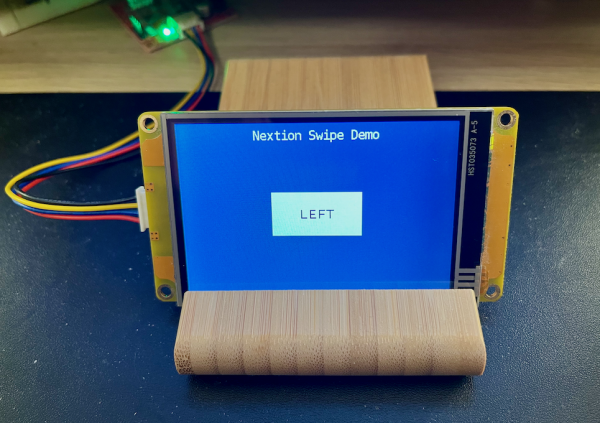
Recently, I stumbled over a Discord server where people seemed to discuss Nextion HMI topics. A member, Carlo, asked: “Hi guys, I bought a HMI display and I noticed that the preloaded graphics supported swipe to change page, could you tell me if anyone knows how to do it? Thanks” – Carlo, your answer is in the following article. While the Nextion Intelligent (P series) HMI displays have native swiping support, this is not the case for all other series (Basic, Enhanced, Discovery). Thus, a few steps are needed to emulate this function…
What is a swiping gesture?
Swiping means touching your screen in one point first, then moving while maintaining the pressure, and finally releasing at a second point. To interpret the movement, we need the x- and the y- coordinates of both points, the one where the swipe movement started, and the other one where it ended. By computing swip_x = x2 – x1 and swip_y = y2 – y1, we get a so called vector which describes perfectly the movement. By looking only at swip_x, we can see if and how much movement there was in horizontal direction. If it’s positive, the movement went to the right, and if it’s negative, the movement went to the left. Similar, a positive swip_y indicates a down swiping and a negative one an up swiping. Now, in most cases (we are all humans), we won’t move our finger on a perfectly straight vertical only or horizontal only line. Thus, a little more thought is needed to interpret the movement. At the same time, we need also to differentiate a swipe movements from wobbly button presses. Thus, we set up two thresholds: min_move and max_ortho. min_move sets the minimum value in pixels of absolute movement in either direction, vertically or horizontally, from which on a swipe gesture will be detected as such, and max ortho sets the maximum value in pixels of which the movement may be deviated from the ideal horizontal or vertical line to be clearly identified as a horizontal or a vertical move.
Now, at least on the mathematical side, things become easy, since we may distinguish 5 cases on two levels:
Case 1: The absolute value of swip_x is greater or equal than min_move AND the absolute value of swip_y is less than max_ortho. That means that we have a horizontal swipe movement, which allows us to sub-divide this case as follows:
Case 1a: swip_x (the real value, not its absolute) is less than zero, thus, it’s a LEFT swipe.
Case 1b: swip_x (the real value, not its absolute) is greater than zero, thus, it’s a RIGHT swipe.
Case 2: The absolute value of swip_y is greater or equal than min_move AND the absolute value of swip_x is less than max_ortho. That means that we have a vertical swipe movement, which allows us to sub-divide this case as follows:
Case 2a: swip_y (the real value, not its absolute) is less than zero, thus, it’s a UP swipe.
Case 2b: swip_y (the real value, not its absolute) is greater than zero, thus, it’s a DOWN swipe.
Case 3: All other types of movement: Its NOT a swipe
As we’ll see later, this abstract formulation of our detection algorithm can be translated into code, almost line by line. But first, we’ll still have to see how to capture a swipe gesture in Nextion code:
Detecting swipe gestures
As we’ve seen above, we need to know the start coordinates where a TouchPress event happened and the end coordinates where the TouchRelease event happened. Not only that, but we want also handle this in only one place and on the most global possible level, before components on our page will interfere by firing their own TouchPress and TouchRelease events. The latter can easily be solved by using a TouchCap component which gets the touch event notifications before the underlying components get triggered. For the coordinates, it’s somewhat more complicated. At each TouchPress and during a dragging movement, the actual touch-x and touch-y coordinates are saved in the system variables tch0 and tch1. At each TouchRelease, these are moved over into tch2 and tch3, while tch0 and tch1 are reset to 0. Ouch! While it’s still simple to set the start_x variable to tch0 and start_y to tch1 in the TouchPress event, we have no way to get the actual touch coordinates of a touch release event. So, the workaround is to have a Timer component tm0 which is enabled on TouchPress and which updates swip_x and swip_y by subtracting start_x from tch0 and star_y from tch1 at very short intervals. The shortest possible interval which can be set in the Timer’s attribute pane is 50ms which allows for 20 updates per second, that’s enough. On TouchRelease, we disable the Timer and we have direct access to the swip_x and the swip_y values. Since the Nextion language lacks a mathematical abs() function, we compute abs_x = abs(swip_x) and abs_y = abs(swip_y) first, to speed up the following distinction of the five cases as described above.
For this demo project, I did not implement the page changes as Carlo requested, but I set the .txt of the Text component t1 to either “LEFT”, “RIGHT”, “UP”, “DOWN”, or simply “” (empty) for the last case, but these lines can easily be replaced by page commands or anything else.
Now, that we have seen everything in theory, you’ll easily recognize everything in the code:
The code walk-through
The program.s file keeps its default content unchanged, we add just the two global constants for the movement detection thresholds and the 6 variables for the interpretation and case distinction:
//The following code is only run once when power on, and is generally used for global variable definition and power on initialization data
int sys0=0,sys1=0,sys2=0     //At present, the definition of global variable only supports 4-byte signed integer (int), and other types of global quantity declaration are not supported. If you want to use string type, you can use variable control in the page to implement
// *** define globals and thresholds for swiping
int min_move=60, max_ortho=30
int start_x,start_y,swip_x,swip_y,abs_x,abs_y
// *** end swiping
baud=9600//Configure baudrate
dim=100//Configure backlight
recmod=0//Serial data parsing mode:0-Passive mode;1-Active mode
printh 00 00 00 ff ff ff 88 ff ff ff//Output power on information to serial port
page 0                       //Power on start page 0
On page 0, we have first the TouchPress event of TouchCap tc0:
// save the start coordinates
start_x=tch0
start_y=tch1
// start the timer
tm0.en=1
Then, the Timer tc0 event which is triggered every 50ms while the finger is moving on the screen:
// update the movement vector
swip_x=tch0-start_x
swip_y=tch1-start_y
And finally, the TouchRelease event of TouchCap tc0. Think of replacing the text display commands with your own code. And if you want to swipe forth and back between several pages, think of duplicating the TouchCap and the Timer component on each page. Then, you’ll only have do adjust the page commands in the following section.
// stop the timer
tm0.en=0
// compute the absolute amount of movement in x and y
if(swip_y<0)
{
  abs_y=-1*swip_y
}else
{
  abs_y=swip_y
}
if(swip_x<0)
{
  abs_x=-1*swip_x
}else
{
  abs_x=swip_x
}
if(abs_y>=min_move&&abs_x<max_ortho)
{
// notable y movement, weak x movement
  if(swip_y>0)
  {
    // put your own code here, instead
    t1.txt="DOWN"
  }else
  {
    // put your own code here, instead
    t1.txt="UP"
  }
}else if(abs_x>=min_move&&abs_y<max_ortho)
{
// notable x movement, weak y movement
if(swip_x>0)
  {
    // put your own code here, instead
    t1.txt="RIGHT"
  }else
  {
    // put your own code here, instead
    t1.txt="LEFT"
  }
}else
{
  t1.txt=""
}
You see, implementing high level functionality with elementary components and code is not rocket science. Since everything was well thought and “drawn” before, the coding is just a simple translation, afterwards.
Those among you who want to use this demo for studying, playing around with, or integrating into your own projects, please feel free: swiping.HMI
Last, but not least
You have any questions, comments, critics, or suggestions? Just send me an email to thierry (at) itead (dot) cc! 🙂
And, by the way, if you like and you find useful what I write, and you are about to order Nextion stuff with Itead, please do so by clicking THIS REFERRAL LINK! To you, it won’t forcibly make a change for your order but on some products, you may even get a 10% discount using the coupon code THIERRYFRSONOFF. In ever case, it will pay me perhaps the one or the other beer or coffee. And that will motivate me to write still more interesting blogs 😉
Thank you for reading and happy Nextioning!
